Arazzo Commercial
Introduction
Want to test how an entire business workflow moves across synchronous APIs and asynchronous event-driven interactions in your microservices architecture? Specmatic can coordinate OpenAPI, GraphQL, and gRPC operations with asynchronous events in one workflow.
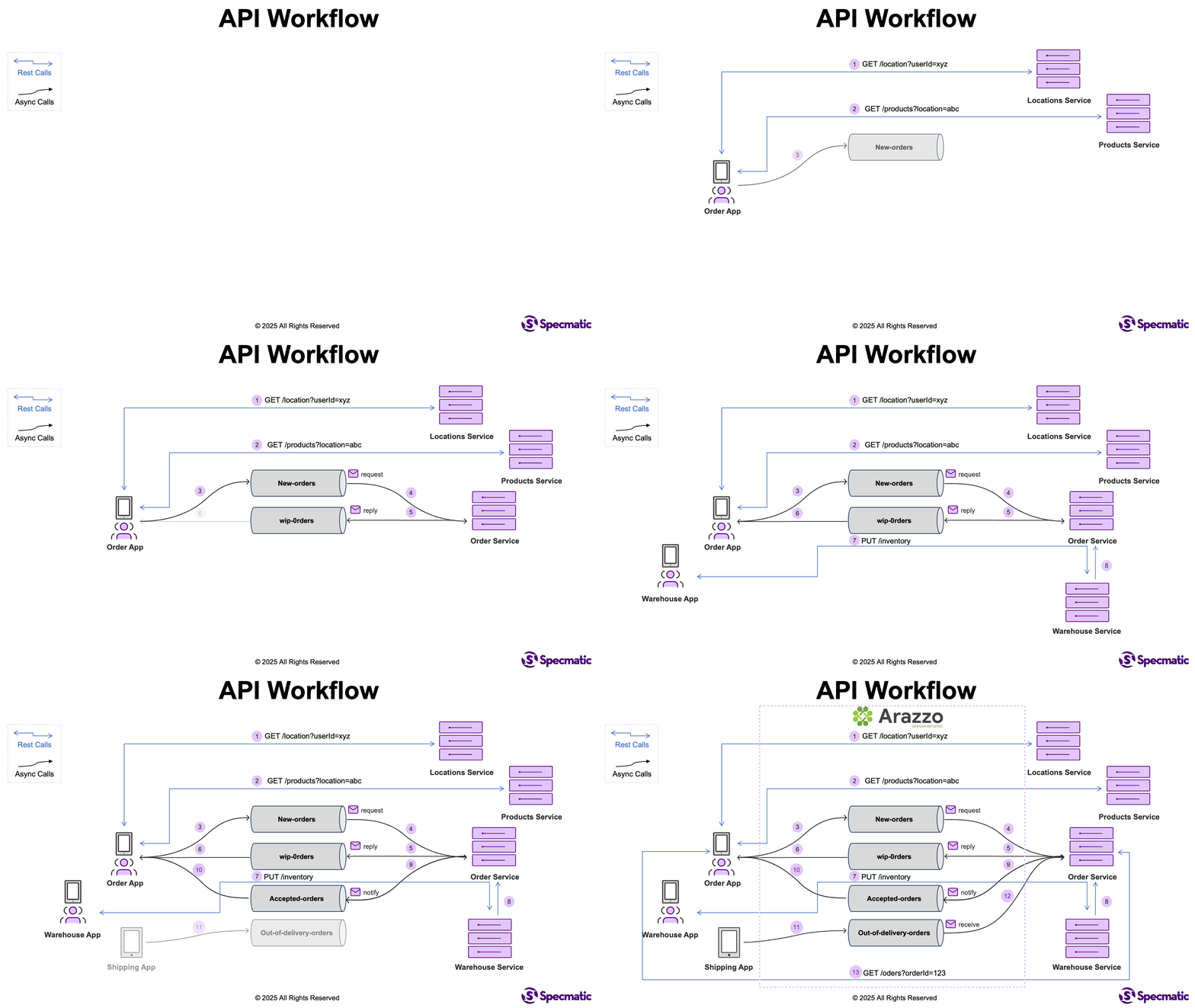
Using a simple drag-and-drop approach, Specmatic facilitates the generation of an entire workflows and exporting that as an industry-standard Arazzo Specification. Once you've created the Arazzo specification, you can leverage Specmatic to perform end-to-end workflow testing and mocking of your microservices architecture.
Specmatic is currently the only Arazzo workflow testing and mocking tool that supports event-driven steps powered by AsyncAPI and also supports GraphQL operations and gRPC calls as Arazzo workflow steps. The proposals to standardize these step types in Arazzo 1.2 are still open: gRPC support and GraphQL support.
What Can You Achieve with Specmatic’s Arazzo Support?
-
Workflow Generation: Create Arazzo workflows interactively in Specmatic Studio.
-
Workflow Validation: Specmatic validates your Arazzo specifications not only against the Arazzo Specification schema but also checks your payloads, parameters, and references against the definitions in your Arazzo specification. It can also perform closed-loop testing using the specification.
-
Workflow Testing: Specmatic executes the workflows defined in your Arazzo specification, covering both happy and unhappy paths. It provides a textual report in the console and an interactive HTML report for further analysis, allowing you to drill down into specific test cases if needed.
-
Workflow Mocking: Specmatic can initiate a mock server using your Arazzo specification and input data. The mock server can replicate the individual workflows and steps according to the mock data and previous requests/responses.
Generating Workflows
Use Specmatic Studio with the Specmatic Enterprise Docker image to generate workflows.
Import your API specifications into Studio and connect operations in sequence to design a business workflow.
Take a look at the Microservices with Event-Driven Architecture Sample to observe its functionality
Understanding Generated Files
When you generate workflows using Specmatic, two files will be created. Both files share the same prefix name to maintain their linkage as a pair:
*.arazzo.yaml— Contains the Arazzo workflow specification (e.g.PlaceOrder.arazzo.yaml)*.arazzo_input.json- Contains the input data for the workflow (e.g.PlaceOrder.arazzo_input.json)
Arazzo Workflow Specification (*.arazzo.yaml)
This file is the standard Arazzo workflow specification, detailing the flow of operations, references to API specifications, and the connections between each step. It encapsulates the logic of the workflow, including the "what" and the "how."
Arazzo Input Data (*.arazzo_input.json)
This file contains the input data required for executing the workflow. It specifies values for parameters, request bodies, or variables needed throughout the workflow. The format is as follows:
{
    "PlaceOrder": {
        "DEFAULT": {
            "PlaceOrder": {
                "orderRequestId": "1234567890"
            },
            "GetUserDetails": {
                "email": "test@specmatic.io",
                "password": "specmatic",
                "internalToken": "API-TOKEN"
            }
        },
        "GetProducts.IsArrayEmpty": {
            "$failureMessage": "Expected not to find any products for random@specmatic.io, as they belong to B Zone",
            "GetUserDetails": {
                "email": "random@specmatic.io",
                "password": "user"
            }
        }
    }
}
Understanding the Structure
PlaceOrder→ Represents the name of the workflow.DEFAULT→ Contains the default scenario with all necessary input data for the workflow.GetProducts.IsArrayEmpty→ A specific scenario indicating that theGetProductsstep and its actionIsArrayEmptyshould evaluate to true.
This input file triggers two workflow test runs:
- One for the DEFAULT scenario.
- Another for the GetProducts.IsArrayEmpty scenario.
Scenario Behavior
- $failureMessage (optional): Displays a custom message if the scenario does not evaluate to true as expected.
- The DEFAULT scenario must include all required inputs for convenience and completeness.
- Partial Scenarios: Non-default scenarios (like
GetProducts.IsArrayEmpty) can specify only the fields they need to override, which will automatically merge with the data from theDEFAULTscenario.
Running Workflow Tests
After creating a workflow, you can execute tests on your microservices to validate the entire end-to-end flow. Run tests in Specmatic Studio or with the CLI and the Specmatic Enterprise Docker image. Each run writes an HTML report and a JSON file with the workflow outputs to ./build/reports/specmatic/arazzo/html/.
Interactively through Specmatic Studio
In Specmatic Studio, you can execute workflow tests through the visual interface. Select which specification runs against each base URL using options from the servers section of your specifications.
During the test execution, Studio also enables you to:
- Monitor real-time results
- Visualize workflow execution through real-time flow diagrams
- Debug and inspect responses and interactions between connected APIs as they occur
Command Line Interface
You can run workflow tests using CLI with the test command from the Specmatic Enterprise Docker image.
docker run -v "$(pwd):/usr/src/app" specmatic/enterprise test <workflow.arazzo.yaml>
You can specify service URLs for your APIs using Specmatic configuration or the CLI:
The names used for base URL overrides must match the name values in the Arazzo file's sourceDescriptions. For example:
sourceDescriptions:
- name: "LocationApi"
  url: "./workflow/openapi/location.yaml"
  type: "openapi"
- name: "OrderApi"
  url: "./workflow/asyncapi/order.yaml"
  type: "asyncapi"
1. Specmatic Configuration v3:
Set baseUrls at the top level of runOptions.arazzo to apply the overrides to all Arazzo specifications in the run:
runOptions:
  arazzo:
    type: test
    baseUrls:
      LocationApi: http://localhost:8081
      OrderApi: http://localhost:8082
2. Fine-Grained Control via --sourceNameToBaseUrl:
Pass the source names as arguments to assign URLs to the specifications:
--sourceNameToBaseUrl LocationApi=http://localhost:8081 --sourceNameToBaseUrl OrderApi=http://localhost:8082
3. Utilize --serverUrlIndex and --serverUrlName:
For OpenAPI specifications, use --serverUrlIndex N to instruct Specmatic to select the N-th server URL from each OpenAPI specification.
For AsyncAPI specifications, use --serverUrlName NAME to direct Specmatic to choose the server URL with the specified name from each AsyncAPI specification.
4. Fallback Host and Port:
You can set a default fallback host and port using --host <host> --port <port> in the test command.
These values will serve as a last resort if no other URL configurations match.
For Arazzo configuration options, see Configuration.
Workflow outputs
Specmatic saves workflow_outputs.json beside the HTML report's index.html in ./build/reports/specmatic/arazzo/html/. The JSON file contains the execution result and final outputs for each workflow scenario. Use it to inspect values produced by the workflow, such as an order ID or status.
Workflow Mocking
After generating a workflow, you can also use it to mock your Arazzo specification, allowing you to simulate the workflow itself, not just the underlying services. When a workflow is mocked, Specmatic tracks which step has been executed, what comes next, and what response should be returned, based on your workflow definition and its input file.
Just like workflow testing, mocking can be performed either interactively through Specmatic Studio or via the Command Line Interface using the Docker image.
Interactively through Specmatic Studio
In Specmatic Studio, you can start a mock workflow session to simulate end-to-end behavior without running your actual services. Studio uses the workflow definition to:
- Monitor real-time request / responses
- Visualize workflow execution through real-time flow diagrams
- Debug and inspect interactions as they occur
Command Line Interface
You can also run workflow mocking through the CLI using the mock command from the Specmatic Enterprise Docker image:
docker run --network host -v "$(pwd):/usr/src/app" specmatic/enterprise mock <workflow.arazzo.yaml>
Sample Projects & Labs
Here are several sample projects you can explore to begin working with Specmatic. Each project includes detailed instructions in its respective README file, along with a video walkthrough that covers everything from generating an Arazzo specification to testing and mocking workflows using Specmatic.
- Specmatic Labs
- Microservices with Frontend Sample
- Microservices with Event-Driven Architecture Sample
- Multi-API Workflow Sample: REST, gRPC, GraphQL, and Kafka Events
- Arazzo Authentication Sample: Bearer, OAuth2, JWT bearer, Vault, and mTLS
- From REST to Events: API Workflow Testing and Mocking with a Single Arazzo Spec